Wi-Fi Router Settings for Smoother Live TV Streaming
Improve live TV reliability with better router placement, band selection, channel planning and Ethernet.
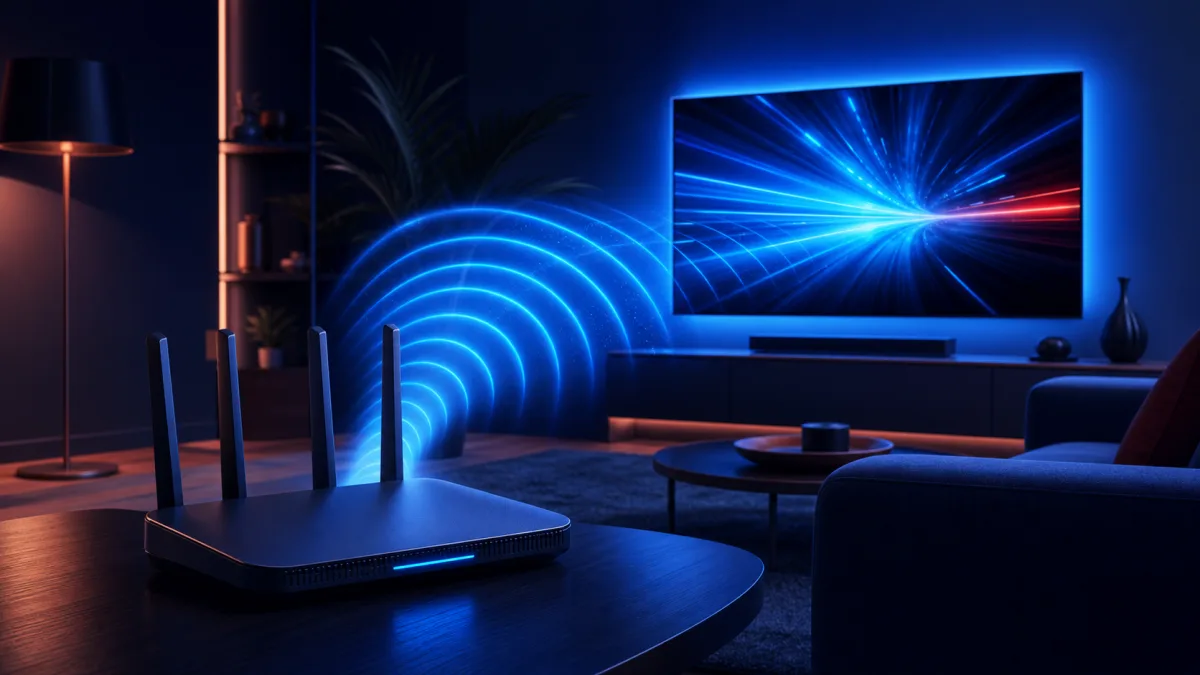
Buying a faster internet plan does not always fix buffering. The speed reaching your home can be healthy while the Wi-Fi link between the router and television is unstable. A few measured changes are usually more useful than changing every advanced setting.
Place the router where the signal can travel
Keep it in an open, elevated position rather than inside a cabinet or behind a television. Thick walls, metal surfaces, mirrors and appliances can weaken or reflect the signal. If possible, position the router closer to the center of the home and away from other radio equipment.
Choose the right Wi-Fi band
| Band | Best use | Trade-off |
|---|---|---|
| 2.4 GHz | Longer distance and rooms separated by walls | Lower capacity and more interference |
| 5 GHz | High-quality video near the router | Shorter range |
| 6 GHz | Compatible newer devices in a clean radio environment | Device support and range vary |
Use 5 GHz for a nearby TV and test 2.4 GHz when several walls stand between the TV and router. A single network name with automatic band steering can be convenient, but separate names make troubleshooting easier.
Test Ethernet before buying a new router
If a temporary cable stops the buffering, Wi-Fi—not the internet service—is the likely bottleneck. Ethernet is especially useful for a stationary 4K television or streaming box. Some sticks require a separate compatible adapter.
Settings to review carefully
- Install the router manufacturer's current stable firmware.
- Use WPA2 or WPA3 security and a unique administrator password.
- Leave channel selection on automatic unless a scan shows persistent congestion.
- Enable QoS only when it can prioritize the television without severely limiting other devices.
- Avoid double-NAT setups created by connecting two routers incorrectly.
Measure the result
Run multiple tests near the TV at busy and quiet times. Record speed, latency and whether the stream remains stable for at least 20 minutes. Consistency matters more than one unusually high result. Continue with our live TV speed checklist if buffering also occurs over Ethernet.
Mesh Wi-Fi, extender or access point?
A basic extender can increase coverage but may reduce usable capacity and add another network transition. A wired access point is usually the most predictable option when a cable is possible. A well-designed mesh system is convenient for larger homes, but placement still matters: a wireless mesh node cannot repeat a strong signal if it receives a weak one.
Quick troubleshooting order
- Restart the affected app and confirm whether other services work.
- Test the television close to the router or with Ethernet.
- Pause large downloads and cloud backups.
- Restart network equipment once, then check for firmware updates.
- Compare results at different times to identify peak-hour congestion.
Change one factor at a time and keep the result. Randomly changing channels, DNS, QoS and security settings together makes the original problem harder to identify.
Should you replace the router?
Replacement is reasonable when the existing unit lacks the coverage, security updates or capacity your household needs. It is not the first answer when the incoming connection itself drops. Ask the internet provider to test the line and document outages before purchasing hardware.
Frequently asked questions
Should a TV use 2.4 GHz or 5 GHz Wi-Fi?
Use 5 GHz when the television is reasonably close to the router and test 2.4 GHz when walls or distance weaken the higher-frequency signal. The most stable measured result is the right choice.
Will changing DNS stop buffering?
DNS mainly helps a device locate a service. It rarely fixes sustained video buffering after playback begins, which is more often related to Wi-Fi stability, congestion or the stream provider.
Does a more expensive router guarantee faster streaming?
No. It can improve capacity and coverage, but it cannot repair a weak incoming connection or poor placement. Test Ethernet and the provider connection before buying new equipment.