How to Choose a Router for 4K Streaming
Choose a router for reliable 4K streaming by comparing coverage, Wi-Fi bands, Ethernet, capacity, updates and total cost.
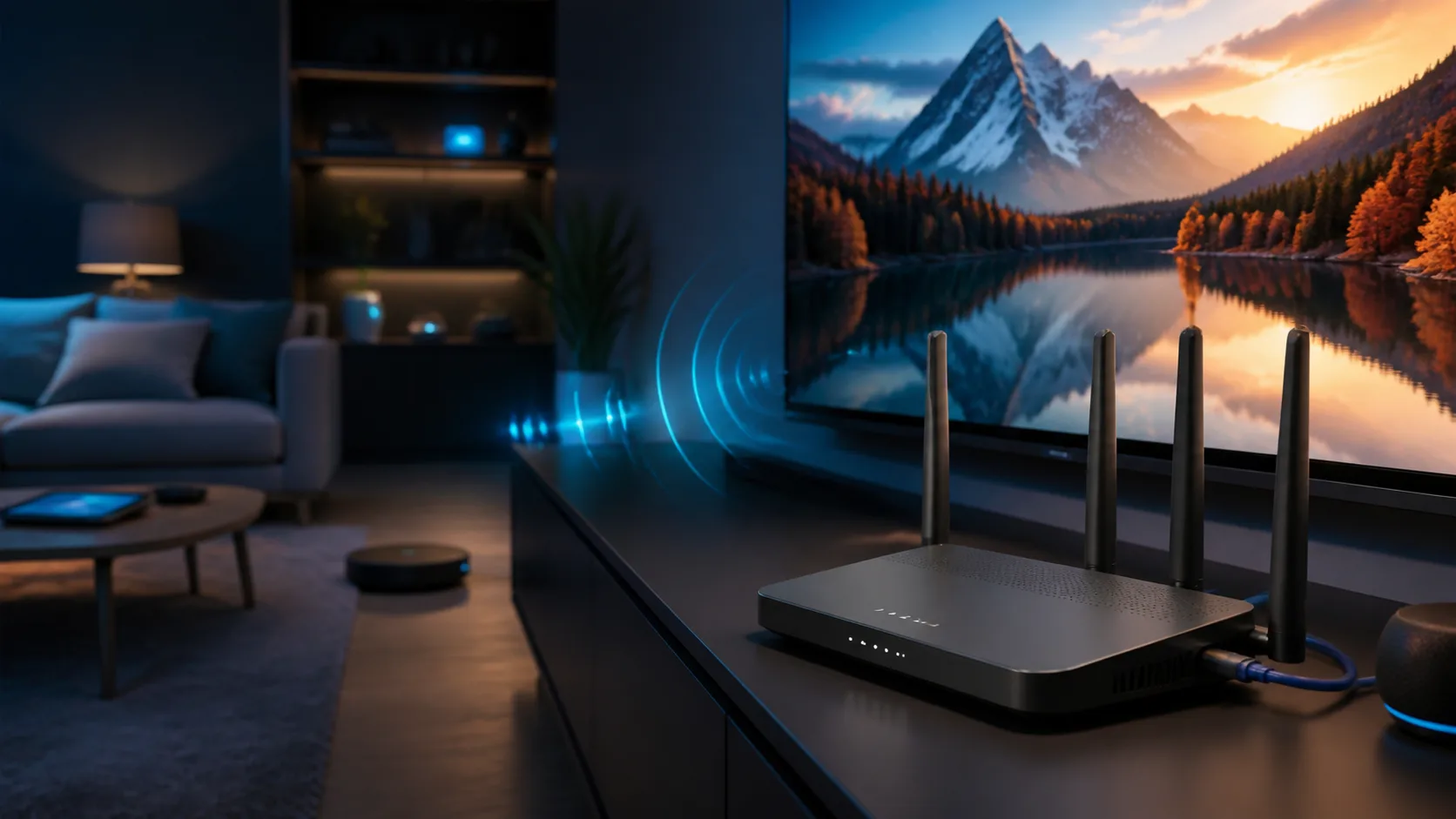
A new router can improve 4K streaming when the existing network has weak coverage, congestion or outdated hardware. It cannot repair an unreliable internet line or make a slow plan faster. Before buying, separate the incoming internet connection from the Wi-Fi problem and choose equipment for the home you actually have.
Start with the number of simultaneous streams
One television is different from a household where two 4K screens run while phones, computers and game consoles are active. Add the expected simultaneous use and leave reasonable headroom for bitrate changes, downloads and video calls. A large headline speed on the router box is a theoretical wireless total, not a promise that every device will receive that rate.
Test the current service by Ethernet before replacing hardware. Our live TV internet speed guide explains how to measure performance during busy hours.
Coverage comes before maximum speed
A fast router in the wrong corner can perform worse than a modest router placed centrally. Thick concrete, metal, mirrors, underfloor heating and several floors can weaken radio signals. Consider where the internet cable enters, where the main television sits and whether a cable can connect fixed devices.
| Home situation | Practical priority |
|---|---|
| Small apartment | One well-positioned dual-band router may be enough |
| Long or multi-floor home | Mesh support or wired access points may matter more than peak speed |
| Crowded apartment building | Good 5 GHz performance and sensible channel management |
| Fixed TV near cabling | Gigabit Ethernet ports and a wired connection |
| Many active devices | Capacity, processor stability and modern multi-device features |
Understand Wi-Fi bands
2.4 GHz generally travels farther but has less capacity and more interference. 5 GHz usually offers higher capacity at shorter range and is a strong choice for a nearby 4K television. 6 GHz can provide cleaner spectrum for compatible devices, but range, wall penetration and device support must be considered. A newer band does not automatically improve an older TV that cannot use it.
Modern routers can steer devices between bands under one network name. This is convenient, but the quality of implementation varies. During troubleshooting, the router application should make it possible to see which node and band the television is using.
Which Wi-Fi generation do you need?
Wi-Fi 6 is a practical baseline for a new household router because it is designed to manage multiple active devices efficiently. Wi-Fi 6E adds access to 6 GHz for compatible clients. Wi-Fi 7 adds newer high-capacity features, but buying it only makes sense when the client devices, internet service and budget can benefit. A reliable Wi-Fi 6 setup with good placement can be a better streaming purchase than a premium router hidden in a cabinet.
Ethernet ports still matter
For a stationary television or streaming box, Ethernet removes the final wireless hop and makes faults easier to diagnose. Look for enough LAN ports for the TV, streaming box, console, access point or network storage you intend to connect. Gigabit Ethernet is sufficient for individual video devices in most homes. Faster multi-gigabit ports are useful when the internet plan, wired computers or local transfers can actually use them.
Some streaming sticks need a separate compatible Ethernet adapter. Check the device specifications before assuming that a router port alone provides a wired option.
Mesh support and expansion
If one router cannot cover the home, decide whether the system can add coordinated mesh nodes later. A wireless node must receive a healthy upstream signal; placing it inside a dead zone does not solve the backhaul problem. Ethernet backhaul is valuable between floors or across dense walls. Read our mesh Wi-Fi setup guide before choosing the number of nodes.
QoS can help, but it is not magic
Quality of Service can prioritize streaming or prevent a large upload from filling the connection. It is most useful when the internet link becomes congested. Poorly configured QoS can reduce throughput or hide the real problem. Prefer a router with understandable controls, apply one change at a time and compare long streaming sessions rather than a single speed test.
Security and software support
A router is part of the home's security boundary. Check whether the manufacturer documents firmware updates, supports WPA2 or WPA3, and provides a clear way to change the administrator password. Automatic security updates are useful when they are transparent and recover safely. Avoid models that already appear abandoned, even when their hardware specifications look impressive.
- Use a unique administrator password.
- Install stable firmware before connecting important accounts.
- Create a guest network for visitors when needed.
- Disable remote administration unless you deliberately use and secure it.
- Review parental controls and paid security subscriptions before purchase.
Do not pay twice for the same features
Some routers require a subscription for advanced security, filtering, traffic history or parental controls. Record the purchase price, required nodes, adapters and subscription cost over several years. Also check whether the internet provider requires its own gateway and whether bridge mode or customer-owned equipment is supported.
Compare the whole broadband offer with our home internet plan guide.
A practical router buying checklist
- Confirm the incoming connection is healthy over Ethernet.
- Map the rooms, walls, floors and fixed television locations.
- Estimate simultaneous streams and other demanding activities.
- Check the Wi-Fi capabilities of the TV and streaming devices.
- Choose enough Ethernet ports and confirm mesh or access-point options.
- Review firmware history, security features and subscription costs.
- Buy from a seller with a realistic return period.
- Test at evening peak time before the return window closes.
Set up the router before judging it
Place it openly and update its firmware. Test the television on both a suitable Wi-Fi band and Ethernet where possible. Run a live 4K stream while other household devices are active. Change only one factor at a time. Our router settings guide provides a measured troubleshooting order.
Frequently asked questions
Do I need Wi-Fi 7 for 4K streaming?
No. A stable Wi-Fi 5 or Wi-Fi 6 connection can support 4K video when coverage and available bandwidth are sufficient. Wi-Fi 7 is mainly a capacity and future-device decision, not a requirement for one 4K stream.
Is an expensive gaming router better for television?
Not automatically. Gaming features, styling and very high theoretical rates may not improve a fixed TV. Prioritize coverage, stability, Ethernet, software support and controls you will actually use.
Should I connect a 4K TV by Ethernet?
Ethernet is a good option for a stationary television because it avoids radio interference. Good Wi-Fi is also sufficient when the measured connection remains stable during busy hours.
Will a new router increase my internet speed?
It can improve the speed delivered inside the home when the old router is the bottleneck. It cannot exceed the internet plan or repair congestion and faults outside the home.
How many mesh nodes should I buy?
Start with the smallest number that covers the measured problem areas. Too many wireless nodes can create unnecessary interference. Placement and backhaul quality matter more than node count.